Discover how to transform the default accordions in PrestaShop 9's Hummingbird theme into classic product page tabs.
The new "Hummingbird" reference theme in PrestaShop 9 introduces a modern, mobile-first approach by using accordions for product information. However, for many desktop users, classic tabs remain the gold standard for e-commerce UX.
This guide provides a step-by-step tutorial on how to replace the default accordion with a classic tabbed interface. By leveraging the native Bootstrap 5 classes already built into Hummingbird, we can achieve a seamless look without writing a single line of custom JavaScript or CSS.
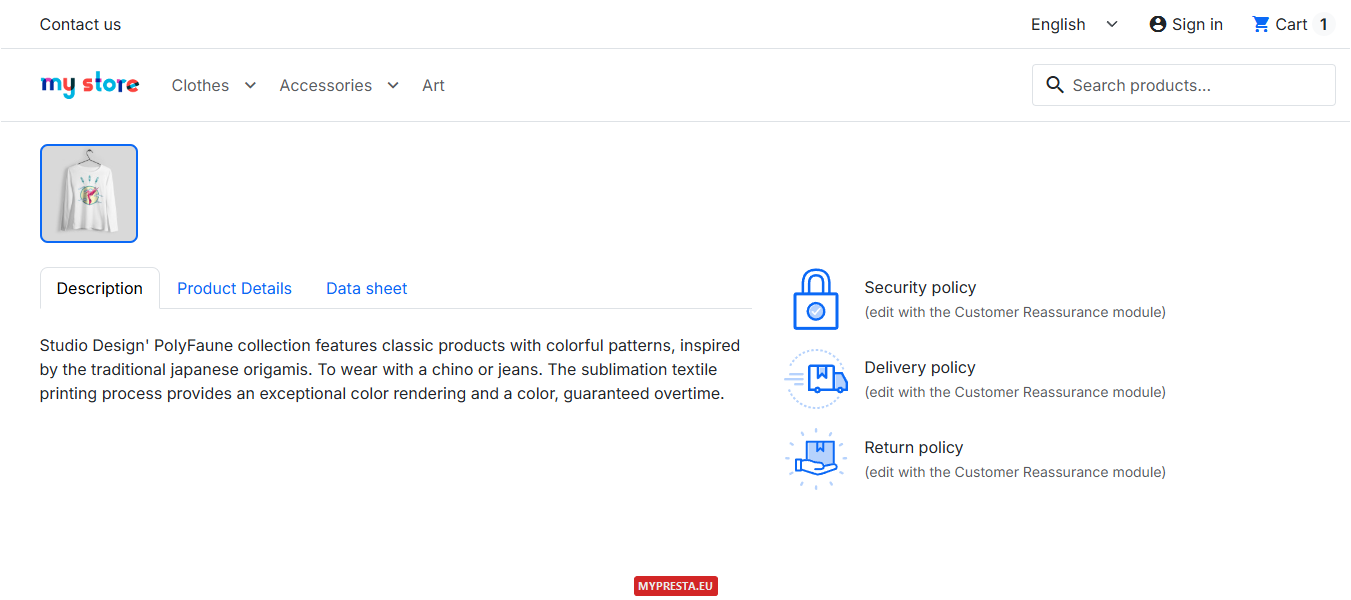
We utilize Bootstrap 5's built-in nav-tabs. This guarantees perfect visual alignment with the rest of your store's UI.
Thanks to Bootstrap's data-bs-toggle="tab" attributes, the theme handles all tab switching and fade animations automatically.
We extract the "Data sheet" (Features) into its own dedicated tab, separating it from standard product details for better readability.
Open your theme's product template file (themes/hummingbird/templates/catalog/product.tpl) and locate the <div class="product__bottom-left"> section. Replace the entire block with the following code. Note that we correctly utilize the $product.grouped_features loop native to Hummingbird.
<div class="product__bottom-left">
{block name='product_tabs'}
{* 1. TAB NAVIGATION *}
<ul class="nav nav-tabs mb-4" id="product-tabs-nav" role="tablist">
{if $product.description}
<li class="nav-item" role="presentation">
<button class="nav-link active" id="tab-description" data-bs-toggle="tab" data-bs-target="#panel-description" type="button" role="tab" aria-controls="panel-description" aria-selected="true">
{l s='Description' d='Shop.Theme.Catalog'}
</button>
</li>
{/if}
<li class="nav-item" role="presentation">
<button class="nav-link {if !$product.description}active{/if}" id="tab-details" data-bs-toggle="tab" data-bs-target="#panel-details" type="button" role="tab" aria-controls="panel-details" aria-selected="{if !$product.description}true{else}false{/if}">
{l s='Product Details' d='Shop.Theme.Catalog'}
</button>
</li>
{* NEW TAB: DATA SHEET *}
{if $product.grouped_features}
<li class="nav-item" role="presentation">
<button class="nav-link" id="tab-features" data-bs-toggle="tab" data-bs-target="#panel-features" type="button" role="tab" aria-controls="panel-features" aria-selected="false">
{l s='Data sheet' d='Shop.Theme.Catalog'}
</button>
</li>
{/if}
{if $product.attachments}
<li class="nav-item" role="presentation">
<button class="nav-link" id="tab-attachments" data-bs-toggle="tab" data-bs-target="#panel-attachments" type="button" role="tab" aria-controls="panel-attachments" aria-selected="false">
{l s='Download' d='Shop.Theme.Actions'}
</button>
</li>
{/if}
{foreach from=$product.extraContent item=extra key=extraKey}
<li class="nav-item" role="presentation">
<button class="nav-link" id="tab-extra-{$extraKey}" data-bs-toggle="tab" data-bs-target="#panel-extra-{$extraKey}" type="button" role="tab" aria-controls="panel-extra-{$extraKey}" aria-selected="false">
{$extra.title}
</button>
</li>
{/foreach}
</ul>
{* 2. TAB PANELS *}
<div class="tab-content" id="product-tabs-content">
{block name='product_description'}
{if $product.description}
<div class="tab-pane fade show active" id="panel-description" role="tabpanel" aria-labelledby="tab-description">
<div class="product__description rich-text">
{$product.description nofilter}
</div>
</div>
{/if}
{/block}
{block name='product_details'}
<div class="tab-pane fade {if !$product.description}show active{/if}" id="panel-details" role="tabpanel" aria-labelledby="tab-details">
{include file='catalog/_partials/product-details.tpl'}
</div>
{/block}
{* NEW CONTENT: DATA SHEET *}
{block name='product_features_tab'}
{if $product.grouped_features}
<div class="tab-pane fade" id="panel-features" role="tabpanel" aria-labelledby="tab-features">
<ul class="details__list">
{foreach from=$product.grouped_features item=feature}
<li class="details__item details__item--feature">
<div class="details__left">
<span class="details__title">{$feature.name}</span>
</div>
<div class="details__right">
<span>{$feature.value|escape:'htmlall'|nl2br nofilter}</span>
</div>
</li>
{/foreach}
</ul>
</div>
{/if}
{/block}
{block name='product_attachments'}
{if $product.attachments}
<div class="tab-pane fade" id="panel-attachments" role="tabpanel" aria-labelledby="tab-attachments">
<div class="product__attachments">
{foreach from=$product.attachments item=attachment}
<div class="attachment mb-3 p-3 border rounded">
<p class="attachment__name fw-bold mb-1">{$attachment.name}</p>
{if $attachment.description}
<p class="attachment__description text-muted small mb-2">{$attachment.description}</p>
{/if}
<a class="attachment__link" href="{url entity='attachment' params=['id_attachment' => $attachment.id_attachment]}" aria-label="{l s='Download %attachment_name%' sprintf=['%attachment_name%' => $attachment.name] d='Shop.Theme.Actions'}">
<i class="material-icons align-middle"></i> {l s='Download' d='Shop.Theme.Actions'} ({$attachment.file_size_formatted})
</a>
</div>
{/foreach}
</div>
</div>
{/if}
{/block}
{foreach from=$product.extraContent item=extra key=extraKey}
<div class="tab-pane fade" id="panel-extra-{$extraKey}" role="tabpanel" aria-labelledby="tab-extra-{$extraKey}" {foreach $extra.attr as $key => $val} {$key}="{$val}"{/foreach}>
{$extra.content nofilter}
</div>
{/foreach}
</div>
{/block}
</div>
Because we moved the Product Features to a new dedicated tab, we need to remove the old code to prevent it from rendering twice. More importantly, product-details.tpl itself is wrapped in an accordion in Hummingbird! If we don't remove this, we'll end up with a broken accordion nested inside our clean tab.
Open themes/hummingbird/templates/catalog/_partials/product-details.tpl and replace its entire content with the clean version below:
<div
  class="js-product-details"
  data-product="{$product.embedded_attributes|json_encode}"
>
  <ul class="details__list">
    {block name='product_manufacturer'}
      {if isset($product_manufacturer->id)}
        <li class="details__item details__item--manufacturer">
          <div class="details__left">
            <span class="details__title">{l s='Brand' d='Shop.Theme.Catalog'}</span>
          </div>

          <div class="details__right">
            {if isset($product_manufacturer.image.bySize.small_default.url)}
              <a href="{$product_manufacturer->url}">
                <img src="{$product_manufacturer.image.bySize.small_default.url}"
                  class="img-fluid details__manufacturer-logo"
                  alt="{$product_manufacturer->name}"
                  loading="lazy"
                  width="{$product_manufacturer.image.bySize.small_default.width}"
                  height="{$product_manufacturer.image.bySize.small_default.height}"
                  aria-label="{l s='Brand: %brand_name%' sprintf=['%brand_name%' => $product_manufacturer->name] d='Shop.Theme.Catalog'}"
                >
              </a>
            {else}
              <a href="{$product_manufacturer->url}">{$product_manufacturer->name}</a>
            {/if}
          </div>
        </li>
      {/if}
    {/block}

    {block name='product_reference'}
      {if !empty($product.reference_to_display)}
        <li class="details__item details__item--reference">
          <div class="details__left">
            <span class="details__title">{l s='Reference' d='Shop.Theme.Catalog'}</span>
          </div>

          <div class="details__right">
            <span>{$product.reference_to_display}</span>
          </div>
        </li>
      {/if}
    {/block}

    {block name='product_quantities'}
      {if $product.show_quantities}
        <li class="details__item details__item--quantities">
          <div class="details__left">
            <span class="details__title">{l s='In stock' d='Shop.Theme.Catalog'}</span>
          </div>

          <div class="details__right">
            <span data-stock="{$product.quantity}" data-allow-oosp="{$product.allow_oosp}">{$product.quantity} {$product.quantity_label}</span>
          </div>
        </li>
      {/if}
    {/block}

    {block name='product_availability_date'}
      {if $product.availability_date}
        <li class="details__item details__item--availability-date">
          <div class="details__left">
            <span class="details__title">{l s='Availability date' d='Shop.Theme.Catalog'}</span>
          </div>

          <div class="details__right">
            <span>{$product.availability_date}</span>
          </div>
        </li>
      {/if}
    {/block}

    {* if product have specific references, a table will be added to product details section *}
    {block name='product_condition'}
      {if $product.condition}
        <li class="details__item details__item--condition">
          <div class="details__left">
            <span class="details__title">{l s='Condition' d='Shop.Theme.Catalog'}</span>
          </div>

          <div class="details__right">
            <span>{$product.condition.label}</span>
          </div>
        </li>
      {/if}
    {/block}

    {block name='product_specific_references'}
      {if !empty($product.specific_references)}
        {foreach from=$product.specific_references item=reference key=key}
          <li class="details__item details__item--{$key|classname}">
            <div class="details__left">
              <span class="details__title">{$key}</span>
            </div>

            <div class="details__right">
              <span>{$reference}</span>
            </div>
          </li>
        {/foreach}
      {/if}
    {/block}
  </ul>
</div>
If a product doesn't have a description, your tabs might look broken because no tab is set to "active". The provided code accounts for this by checking {if !$product.description} and assigning the active state to the Product Details tab dynamically.
When upgrading your store or developing locally, remember that PrestaShop 9.1.0 and the new Hummingbird theme strictly require PHP 8.1 or higher. Attempting to run modern themes on legacy PHP environments (like 5.6 or 7.4) will result in fatal 500 server errors.
If you skip Step 2, you'll end up with tabs that contain collapsed accordions inside them instead of raw details. It's crucial to replace the code in product-details.tpl to strip the mobile-first wrapper classes.
Avoid writing custom Javascript event listeners (like document.getElementById('tab').addEventListener...) to handle these tabs. Hummingbird's global Bootstrap bundle handles the data-bs-toggle="tab" logic natively. Custom JS might lead to race conditions or double-firing events.
When copying and pasting code from a browser into your .tpl files, some text editors might accidentally paste non-breaking spaces ( ). This can break Smarty compilation or cause weird spacing issues. If you encounter errors, use your IDE's "Find and Replace" tool to replace all non-breaking spaces with standard spaces.
Improved Desktop UX: Information is available instantly without the need for endless vertical scrolling through long accordions.
Content Organization: Moving the "Data sheet" to a separate tab allows customers to quickly find technical specifications without navigating past the brand or reference numbers.
SEO Friendly: Even though the content is visually hidden inside non-active tabs, it remains fully present in the DOM. Search engine crawlers can easily index your descriptions and features without issue.
Now that you've mastered classic tabs, why stop there? Product Extra Tabs Pro allows you to create unlimited custom product blocks—perfect for size guides, video showcases, and extended specifications.
Designed to work beautifully right out of the box, it aligns perfectly with both Hummingbird's native accordions and your newly crafted classic tabs. Enhance your e-commerce experience effortlessly!

Article written byMilosz Myszczuk, PrestaShop expert. CEO and founder of the VEKIA interactive agency. Learn more.
If you like this article, support our work!

Sell optional checkout services your customers choose: gift wrapping, shipping insurance, express ha...
149.00 €

Conditional Order Validation lets you block or warn checkout when a cart breaks your rules. Set cond...
129.00 €

Apply conditional order discounts using native cart rules. Create BOGO deals, buy N get M free, spen...
149.00 €

Charge handling, service or packaging fees only when your rules match. Conditional Order Fees adds a...
129.00 €



